Refine workflow
Refine an AI Image Without Losing Its Composition
Use Onhand Refine with one change per pass, explicit acceptance criteria, and Keep or Revert checks to limit drift in an image you already like.
By Onhand Studio · September 16, 2026 · 4 min read
Name the improvement before starting Refine
When an image already works, the next pass needs a narrow purpose. Perhaps the background is too busy, the colors are too saturated, or a fabric surface looks plastic. Choose one visible problem and write down what a successful correction would look like. Then name the parts you already like: subject placement, head angle, horizon, or the space reserved for a headline. These become your comparison criteria.
Onhand Refine reworks the whole image. It can change areas you were not trying to improve, and a prompt asking it to preserve the composition is guidance rather than a guarantee. That is why a defined improvement matters: you need to decide whether the new result earns its place over the previous one. More detailed is not automatically better when those details move the subject or obscure the focal point.
Make one pass from the version you trust
Use Refine on the finished image you want to improve. Keep the selected model for the first comparison so a model change does not become another variable. Onhand supports Refine across its generation engines. Use a modest editing strength as a starting point, such as around 30%, within the available 25% to 85% range. Inspect the result even at the lowest setting; small facial features and lettering remain sensitive to redrawing.
Quieter background starting prompt
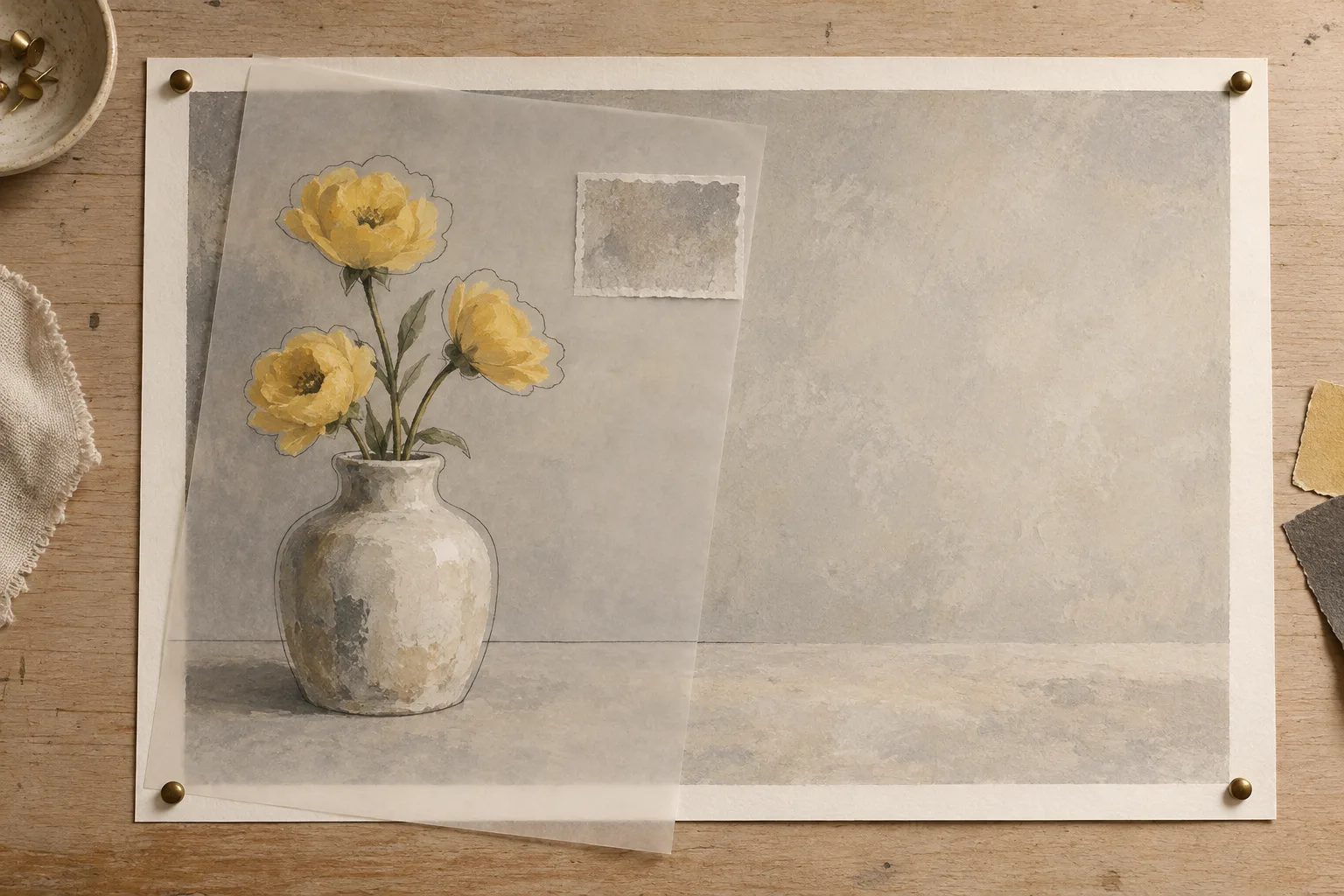
A ceramic vase holding three yellow flowers on the left side of a wooden table, soft neutral gray background with broad simple tones, gentle daylight, clear separation around the flower silhouettes, open space on the right.
This prompt describes a finished image with a simpler background. Replace its subject and layout with your own. Include enough of the existing scene to keep the request grounded, then state the one quality you want improved. Avoid piling a new style, new lighting, and additional props into the same pass. You would have to judge several different changes at once.
Use Keep and Revert as editorial decisions
- Compare the full image first. Has the subject stayed in a useful position, with the same breathing room?
- Check the specific requested improvement. Is the background simpler, or only different?
- Inspect sensitive details: faces, hands, lettering, object rims, repeated structures, and contact shadows.
- Choose Keep only when the improvement is useful and the new errors are acceptable for the image’s purpose.
- Choose Revert when the pass damages something more important than the issue it solved.
The version strip helps you return to earlier points in the sequence. Use it to compare against the image that originally worked, not only the immediately previous pass. A series of small shifts can feel harmless one at a time while producing a noticeably different composition over several rounds. Check the anchor version whenever the subject begins to feel unfamiliar.
Switch workflows when the problem is local
If the only problem is a small unwanted object, a whole-image Refine pass may be unnecessarily broad. Onhand’s Inpaint workflow with Turbo lets you paint the region to replace. That has its own boundary checks, but it gives a local problem a local working area. By contrast, a shift in overall mood or a conversion to watercolor affects the entire frame and fits a whole-image workflow more naturally.
If a sign needs exact spelling, use a design tool to add the words. If the image only needs cropping, crop a separate copy. If exposure is slightly low, consider a normal photo adjustment. These choices preserve control over changes that do not require new image content. Reserve another generative pass for a change that benefits from reinterpretation.
Set a stopping point that protects the image
After a failed pass, change one thing: simplify the prompt, reduce strength, or return to a better source version. Avoid trying to repair every new defect with another full pass. A flower that gained an extra stem can become the starting assumption for the next generation. Returning to an earlier successful version often gives a clearer path than elaborating on a compromised one.
Finish when the image satisfies its actual use. For a small cover graphic, a clear silhouette and readable empty space may matter more than microscopic texture. For a portrait, recognition may outweigh a dramatic lighting effect. Save the selected final image separately and retain the useful earlier version. Keep or Revert is most helpful when it reflects those priorities.